

你可以將Compose-based UI 加到採用view-based設計的既有App。
如要建立以 Compose 為基礎的新畫面,請讓活動呼叫 setContent() 方法,然後視需要傳遞任何可組合項。
class ExampleActivity : ComponentActivity() { override fun onCreate(savedInstanceState: Bundle?) { super.onCreate(savedInstanceState) setContent { // In here, we can call composables! MaterialTheme { Greeting(name = "compose") } } } } @Composable fun Greeting(name: String) { Text(text = "Hello $name!") }
這段程式碼看起來就像 Compose-only App中會出現的寫法。
ViewCompositionStrategy (針對 ComposeView)
ViewCompositionStrategy 定義應處置組合的時間。預設值 ViewCompositionStrategy.Default 會在基礎 ComposeView 從視窗卸離時處置 Composition,除非該 Composition 是集區容器 (例如 RecyclerView) 的一部分。在僅含單一 Activity 的 Compose 應用程式中,您會希望採用這項預設行為,但如果您在程式碼集中逐步新增 Compose,這項行為可能會在某些情況下導致狀態遺失。
如要變更 ViewCompositionStrategy,請呼叫 setViewCompositionStrategy() 方法並提供其他策略。
下表摘要說明您可以使用 ViewCompositionStrategy 的不同情境:
ViewCompositionStrategy | 說明和互通性情境 |
|---|---|
DisposeOnDetachedFromWindow | 當基礎 ComposeView 從視窗卸離時,系統會處置 Composition。現已由 DisposeOnDetachedFromWindowOrReleasedFromPool 取代。互通性情境: * ComposeView 是否為檢視區塊階層中的唯一元素,或位於混合檢視區塊/Compose 畫面中 (不在片段中)。 |
DisposeOnDetachedFromWindowOrReleasedFromPool (預設) | 與 DisposeOnDetachedFromWindow 類似,當組合不在集區容器中 (例如 RecyclerView),如果項目位於集區容器中,則會在集區容器本身從視窗中分離,或項目遭到捨棄 (即集區已滿) 時處置。互通性情境: * ComposeView 項目是否為 View 階層中的唯一元素,或位於混合式 View/Compose 畫面 (不在 Fragment 中) 的環境。* ComposeView 做為集區容器 (例如 RecyclerView) 中的項目。 |
DisposeOnLifecycleDestroyed | 當提供的 Lifecycle 遭到毀損時,系統會處置 Composition。互通性情境 * 片段檢視畫面中的 ComposeView。 |
DisposeOnViewTreeLifecycleDestroyed | 當 View 附加至下一個視窗時,ViewTreeLifecycleOwner.get 傳回的 LifecycleOwner 所擁有的 Lifecycle 遭到毀損,系統就會處置 Composition。互通性情境: * Fragment 的 View 中的 ComposeView。* 在生命週期尚未確定的 View 中使用 ComposeView。 |
Fragment 中的 ComposeView
如要在片段或現有的 View 版面配置中加入 Compose UI 內容,請使用 ComposeView 並呼叫其 setContent() 方法。ComposeView 是 Android View。
您可將 ComposeView 和其他的 View 一樣地放在 XML 版面配置中:
<LinearLayout xmlns:android="http://schemas.android.com/apk/res/android" android:orientation="vertical" android:layout_width="match_parent" android:layout_height="match_parent"> <TextView android:id="@+id/text" android:layout_width="wrap_content" android:layout_height="wrap_content" /> <androidx.compose.ui.platform.ComposeView android:id="@+id/compose_view" android:layout_width="match_parent" android:layout_height="match_parent" /> </LinearLayout>
在 Kotlin 原始碼中,從 XML 定義的版面配置資源加載版面配置。然後使用 XML ID 取得 ComposeView,並設定最適合代管 View 的 Composition 策略,並呼叫 setContent() 以使用 Compose。
class ExampleFragmentXml : Fragment() { override fun onCreateView( inflater: LayoutInflater, container: ViewGroup?, savedInstanceState: Bundle? ): View { val view = inflater.inflate(R.layout.fragment_example, container, false) val composeView = view.findViewById<ComposeView>(R.id.compose_view) composeView.apply { // Dispose of the Composition when the view's LifecycleOwner // is destroyed setViewCompositionStrategy(ViewCompositionStrategy.DisposeOnViewTreeLifecycleDestroyed) setContent { // In Compose world MaterialTheme { Text("Hello Compose!") } } } return view } }
或者,您也可以使用檢視區塊繫結,方法是參照 XML 版面配置檔案產生的繫結類別,取得 ComposeView 的參照:
class ExampleFragment : Fragment() { private var _binding: FragmentExampleBinding? = null // This property is only valid between onCreateView and onDestroyView. private val binding get() = _binding!! override fun onCreateView( inflater: LayoutInflater, container: ViewGroup?, savedInstanceState: Bundle? ): View { _binding = FragmentExampleBinding.inflate(inflater, container, false) val view = binding.root binding.composeView.apply { // Dispose of the Composition when the view's LifecycleOwner // is destroyed setViewCompositionStrategy(ViewCompositionStrategy.DisposeOnViewTreeLifecycleDestroyed) setContent { // In Compose world MaterialTheme { Text("Hello Compose!") } } } return view } override fun onDestroyView() { super.onDestroyView() _binding = null } }

圖 1. 這個程式碼會顯示在 View UI 階層中新增 Compose 元素的程式碼輸出內容。「Hello Android!」文字會以 TextView 小工具顯示。「您好 Compose!」文字會顯示Compose 文字元素。
假如您使用 Compose 建立全螢幕畫面,可以直接在片段中加入 ComposeView,避免完全使用 XML 版面配置檔案。
class ExampleFragmentNoXml : Fragment() { override fun onCreateView( inflater: LayoutInflater, container: ViewGroup?, savedInstanceState: Bundle? ): View { return ComposeView(requireContext()).apply { // Dispose of the Composition when the view's LifecycleOwner // is destroyed setViewCompositionStrategy(ViewCompositionStrategy.DisposeOnViewTreeLifecycleDestroyed) setContent { MaterialTheme { // In Compose world Text("Hello Compose!") } } } } }
在同一個版面配置中有多個 ComposeView 執行個體
如果在同一個版面配置中有多個 ComposeView 元素,則每個元素都必須有專屬 ID 供 savedInstanceState 運作。
class ExampleFragmentMultipleComposeView : Fragment() { override fun onCreateView( inflater: LayoutInflater, container: ViewGroup?, savedInstanceState: Bundle? ): View = LinearLayout(requireContext()).apply { addView( ComposeView(requireContext()).apply { setViewCompositionStrategy( ViewCompositionStrategy.DisposeOnViewTreeLifecycleDestroyed ) id = R.id.compose_view_x // ... } ) addView(TextView(requireContext())) addView( ComposeView(requireContext()).apply { setViewCompositionStrategy( ViewCompositionStrategy.DisposeOnViewTreeLifecycleDestroyed ) id = R.id.compose_view_y // ... } ) } }
res/values/ids.xml 檔案已定義 ComposeView ID:
<resources> <item name="compose_view_x" type="id" /> <item name="compose_view_y" type="id" /> </resources>
在版面配置編輯器中預覽可組合項
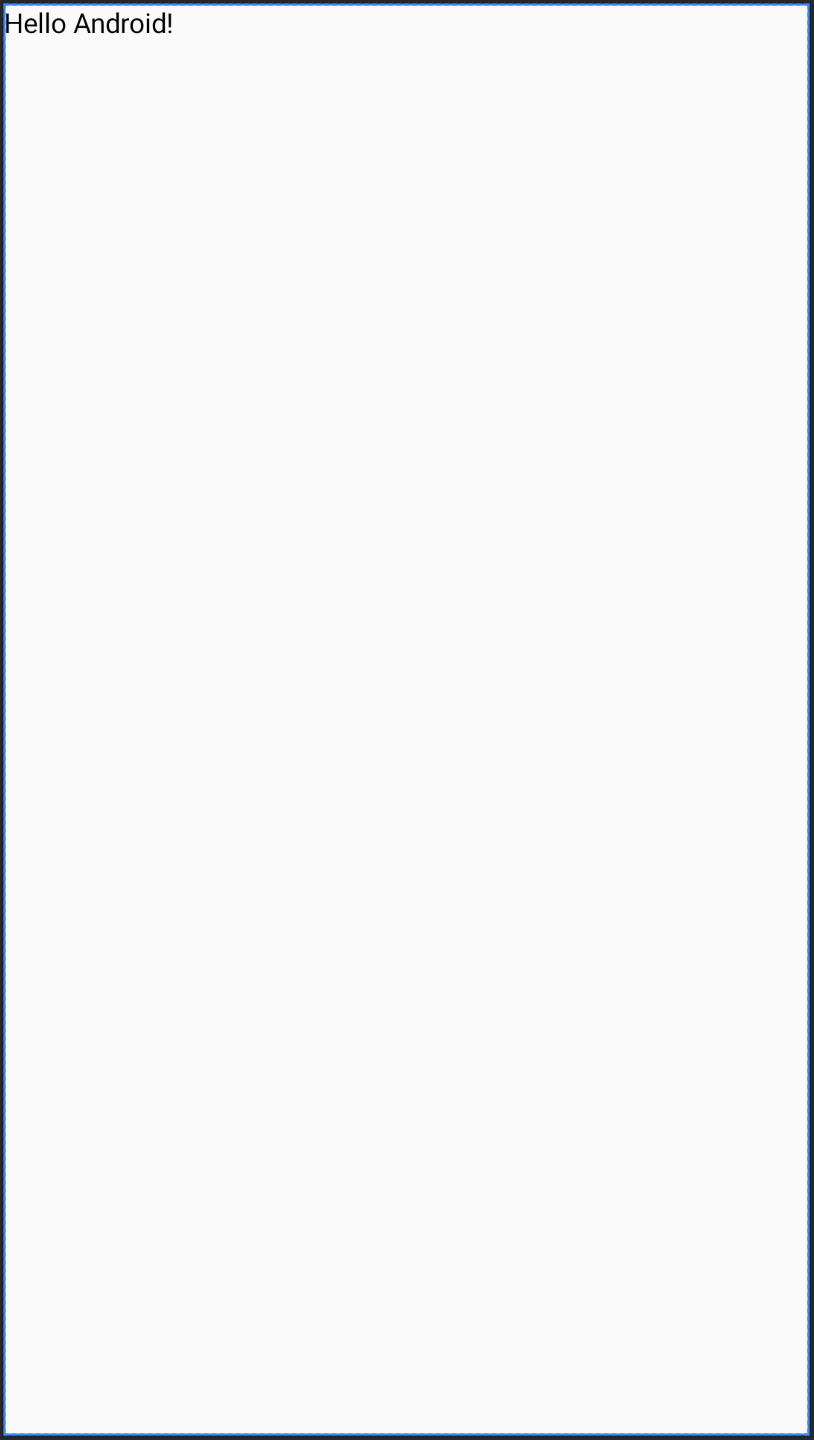
您也可以在版面配置編輯器中,預覽含有 ComposeView 的 XML 版面配置中的可組合項。這樣一來,您就能在混合式 Views 和 Compose 版面配置中,查看可組合函式的外觀。
假設您想在版面配置編輯器中顯示下列可組合函式。請注意,以 @Preview 註解標註的可組合函式,很適合在版面配置編輯器中預覽。
@Preview @Composable fun GreetingPreview() { Greeting(name = "Android") }
如要顯示這個可組合函式,請使用 tools:composableName 工具屬性,並將其值設為要在版面配置中預覽的可組合函式完整名稱。
<LinearLayout xmlns:android="http://schemas.android.com/apk/res/android" xmlns:tools="http://schemas.android.com/tools" android:orientation="vertical" android:layout_width="match_parent" android:layout_height="match_parent"> <androidx.compose.ui.platform.ComposeView android:id="@+id/my_compose_view" tools:composableName="com.example.compose.snippets.interop.InteroperabilityAPIsSnippetsKt.GreetingPreview" android:layout_height="match_parent" android:layout_width="match_parent"/> </LinearLayout>
後續步驟
現在您已瞭解互通性 API 的相關資訊,能夠在 View 中使用 Compose,接著請瞭解如何在 Compose 中使用 View。
為您推薦
- 注意:系統會在 JavaScript 關閉時顯示連結文字
- 其他考量
- 遷移策略 {:#migration-strategy}
- 比較撰寫和檢視成效